


Modern thin-and-light laptops like the MacBook Air, Dell XPS, and Lenovo ThinkPad give you just two or three USB-C ports—meaning if you sit down at your desk and have to plug in a power cord, two HDMI monitor cables, a wired Ethernet cord, a webcam, and a keyboard dongle one by one, docking your laptop becomes a daily headache.
A single-cable USB-C Docking Station transforms that clutter: you leave your monitors, Ethernet, power, and USB accessories permanently plugged into the dock on your desk, and connect one single USB-C cable to your laptop to wake up your entire workstation AND charge your battery simultaneously.
However, finding the best USB-C docking stations under $150 in 2026 requires understanding one critical Mac vs. Windows rule: standard non-DisplayLink docks mirror both external monitors on base M1/M2/M3 MacBooks unless you choose the right dock architecture!
To help you build a clean, one-cable desk without spending $300 on a Thunderbolt 4 brick, we’ve compared seven top-rated USB-C docking stations under $150 on Amazon.
Quick Comparison: Best USB-C Docking Stations Under $150 of 2026
| Product | Best For | Key Feature |
|---|---|---|
| Anker 575 13-in-1 Dock | Best Overall Desktop Dock | Includes its own 135W power brick (delivers 85W to laptop + 18W to phone), 2 HDMI + 1 DisplayPort, Gigabit Ethernet, and SD/TF slots |
| Plugable / Anker DisplayLink Dock | Best Dual-Monitor Dock for M1/M2/M3 Macs | Built-in DisplayLink chip bypasses Apple’s 1-monitor limit on base M1/M2/M3 MacBooks + 60W–100W laptop charging |
| Baseus Spacemate 11-in-1 | Best Modern Desk Tower & Screen-Lock Button | Space-age vertical tower with LED port status screen, 1-touch Privacy Screen-Off button on top, 2 HDMI + 1 DP, and 10Gbps USB |
| UGREEN Revodok Pro Dual 4K60 | Best Portable & Desk Hybrid Under $70 | Dual 4K@60Hz HDMI/DP outputs, 100W PD pass-through, Gigabit Ethernet, and 10Gbps USB-C/A in an aluminum bar under $70 |
| CalDigit SOHO Dock | Best Pro-Grade Bus/Powered Mini Dock | Full 10Gb/s USB-C Gen 2 bandwidth, HDMI 2.0b + DisplayPort 1.4 (true 4K60Hz HDR), UHS-II SD slots, and detachable host cable |
| Dell WD19S / TobenONE Dock | Best Corporate Office Dock | Includes heavy-duty 100W–180W AC power adapter, 2 DisplayPort + 1 HDMI, Gigabit Ethernet, and 5+ USB ports |
| Anker 364 10-in-1 Dual 4K Hub | Best Long-Cable Desk Hub Under $65 | Extra-long 1.6ft attached host cord (lets hub sit flat on desk from laptop stand), Dual HDMI, Ethernet, and SD slots |
These are category-based editorial recommendations, not results from a single comparative laboratory test. Specifications are based on manufacturer information; we have not independently tested every product.
1. Anker 575 USB-C Docking Station (13-in-1 with 85W Laptop PD & Power Adapter) – Best Overall Powered 13-in-1 USB-C Desktop Docking Station Under $150
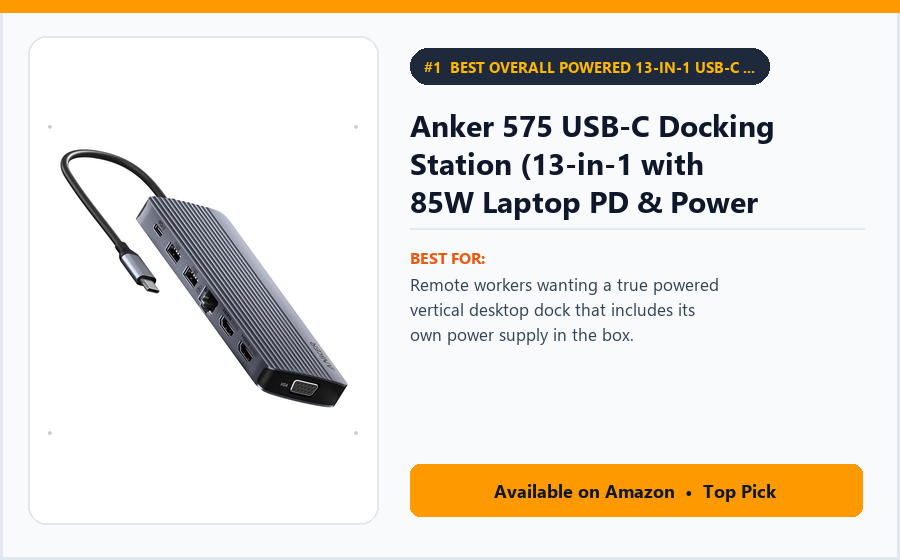
Best for: Remote workers wanting a true powered vertical desktop dock that includes its own power supply in the box.
Many sub-$100 ‘docks’ are actually unpowered travel dongles that force you to unplug your laptop’s own wall charger from your backpack and plug it into the dongle just to get power.
The Anker 575 USB-C Docking Station (13-in-1) is a true stationary desktop dock—complete with its own 135W dedicated AC power brick included right in the box—so your laptop’s travel charger can stay packed in your backpack 24/7!
Key Features
Standing vertically in a sleek aluminum tower, it delivers 85W continuous charging to your laptop over the single host USB-C cable PLUS a dedicated 18W front USB-C Power Delivery port to fast-charge your phone.
On the back sit two HDMI ports and one DisplayPort (supporting up to triple 1080p monitors or dual 4K/2K monitors on Windows MST laptops), plus Gigabit Ethernet.
The front panel gives you instant reach to 10Gbps USB-C data, three USB-A ports, full-size SD and MicroSD card readers, and a 3.5mm headphone/mic jack.
Why It’s Worth Considering
MAC vs. WINDOWS NOTE: On Windows laptops, the Anker 575 supports two or three independent extended monitors. On macOS (which does not support MST over non-Thunderbolt USB-C), plugging two monitors into the Anker 575 will show the same image on both external screens (if you have a Mac and want two different external screens, pick the Plugable DisplayLink #2 below!).
✓ Pros
- Includes its own 135W AC power adapter in the box (supplies 85W to laptop + 18W to phone).
- Massive 13-port selection including 2 HDMI, 1 DisplayPort, and Gigabit Ethernet.
- Front-facing SD/MicroSD slots, 3.5mm audio, and 10Gbps USB-C for easy thumb-drive reach.
- Sturdy vertical metal stand takes up minimal desk footprint.
- Frequently priced between $119 and $149 on Amazon.
✗ Cons
- Uses USB-C MST—so macOS users get 1 extended external monitor (dual monitors mirror on Mac; Windows gets full dual/triple extended displays).
- External 135W power brick sits on the floor under the desk.
- Video ports max at 4K60Hz (single monitor) or dual 2K60Hz/4K30Hz.
- Host USB-C port is on the front panel.
Our Verdict
The Anker 575 (13-in-1) is our #1 overall desktop docking station under $150 for Windows laptops and single-ultrawide Mac setups—because including a dedicated 135W power supply makes true one-cable docking effortless.
Park the 135W power brick under your desk so only the clean vertical hub sits below your monitor.
2. Plugable USB-C Dual Monitor Docking Station w/ DisplayLink (UD-MSTH2 / UD-ULTCDL / Anker 563) – Best Dual-Monitor USB-C Dock for Base M1/M2/M3 MacBooks & Windows Under $150
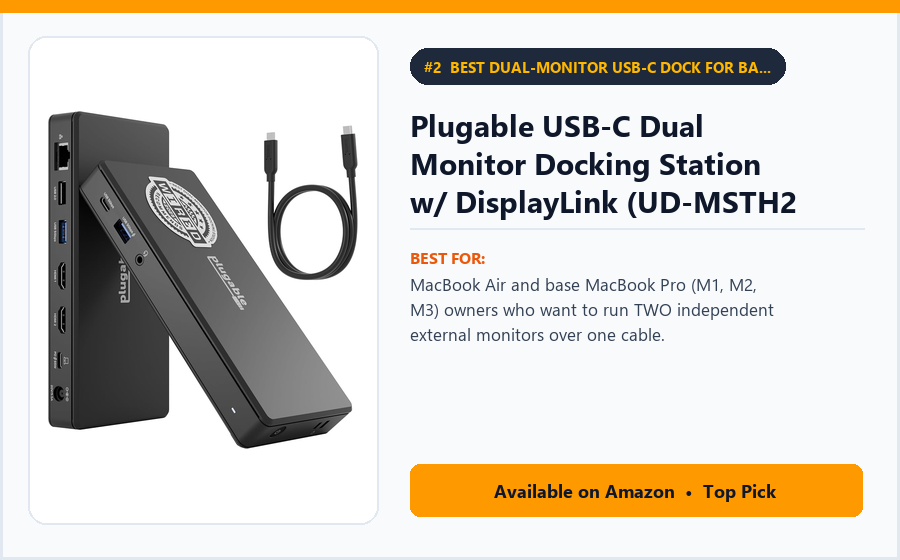
Best for: MacBook Air and base MacBook Pro (M1, M2, M3) owners who want to run TWO independent external monitors over one cable.
Here is the most common frustration for MacBook Air and base 13″/14″ M1, M2, and M3 MacBook owners: Apple’s base M-series chips natively support only ONE external display over standard USB-C—meaning regular $50 hubs just mirror your two monitors!
DisplayLink-powered USB-C Docks—such as the Plugable Dual Display Docking Station and Anker 563 (10-in-1 DisplayLink Hub)—solve that hardware limit by incorporating a Silicon Motion / Synaptics DisplayLink graphics chip inside the dock.
Key Features
Once you install the free official DisplayLink Manager app on your Mac (or Windows PC), the dock drives two independent extended 1080p or 4K monitors alongside your open laptop screen (three distinct screens total!).
You also get Gigabit Ethernet, multiple USB-A and USB-C ports for webcams/keyboards, a 3.5mm audio jack, and up to 65W–100W Power Delivery laptop charging.
Works identically when you unplug your MacBook and plug in a corporate Windows laptop.
Why It’s Worth Considering
GOOD TO KNOW ABOUT DISPLAYLINK: DisplayLink is phenomenal for spreadsheets, coding, Slack, browsers, and YouTube—however, because macOS treats DisplayLink as a virtual screen buffer, copy-protected HDCP streaming apps (like Netflix/Disney+ in Safari) may show a black video window unless you uncheck ‘Hardware Acceleration’ in Chrome settings.
✓ Pros
- Unlocks TWO or THREE independent extended monitors on base M1, M2, and M3 MacBooks!
- Works seamlessly across both macOS and Windows laptops with one cable.
- Includes Gigabit Ethernet, multiple USB-A/C ports, and laptop Power Delivery.
- Outstanding documentation and US-based driver support from Plugable.
- Priced under $150 (saving $150+ vs Thunderbolt docks).
✗ Cons
- Requires installing the free DisplayLink Manager driver software on Mac.
- Watching Netflix/Hulu on DisplayLink screens requires turning off Chrome hardware acceleration (due to HDCP DRM).
- Not intended for competitive 144Hz 3D gaming on the secondary screens.
- Check whether your specific bundle includes the AC power supply or uses your laptop’s USB-C brick.
Our Verdict
A DisplayLink USB-C Dock (from Plugable or the Anker 563 10-in-1) is the #1 must-buy under $150 if you own a base M1/M2/M3 MacBook Air or Pro and want two independent external monitors.
Download the latest DisplayLink Manager driver directly from Synaptics/Plugable on day one.
3. Baseus Spacemate 11-in-1 Vertical USB-C Docking Station (100W PD, Dual 4K) – Best Vertical Desktop USB-C Hub with LED Display & Screen-Lock Button Under $90
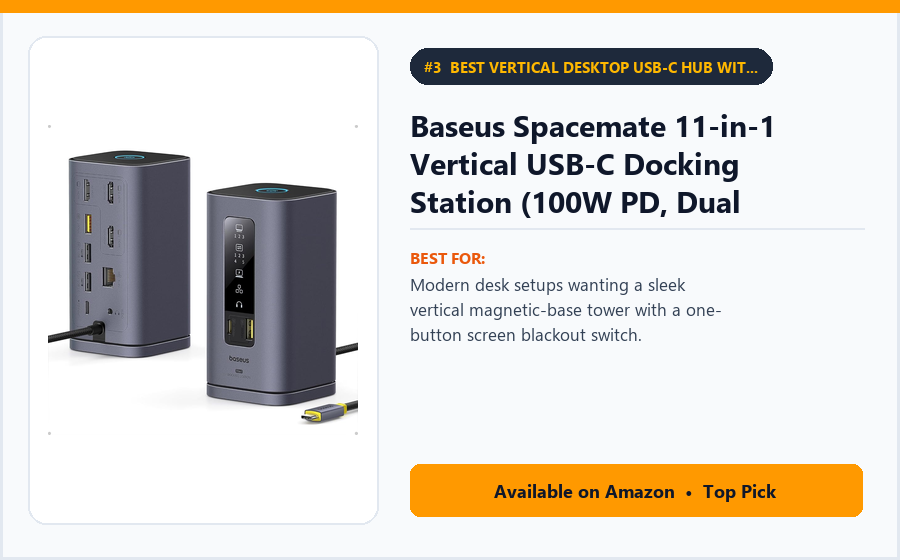
Best for: Modern desk setups wanting a sleek vertical magnetic-base tower with a one-button screen blackout switch.
Instead of a flat gray dongle lying awkwardly in the middle of your desk mat with wires sticking out all four sides, the Baseus Spacemate 11-in-1 (~$69 to $89) stands upright like a miniature Mac Pro tower on a magnetic weighted base.
On the front, a crisp digital LED panel shows you which video, Ethernet, and USB ports are actively connected and at what resolution/speed.
Key Features
On the very top of the tower sits a brilliant One-Click Screen Lock / Blackout Button: if a coworker or family member walks into your office while confidential spreadsheets or gifts are on your monitors, one tap on top of the dock blanks out your external displays instantly!
The rear houses two 4K HDMI ports, one 4K DisplayPort, Gigabit Ethernet, and a 100W PD power input, while the front provides two 10Gbps USB-C/USB-A ports, a USB 2.0 mouse receiver port, and 3.5mm audio.
An attached braided host USB-C cable with a right-angle 90-degree plug connects cleanly to the side of your laptop.
Why It’s Worth Considering
Note that Baseus sells both a Windows MST version (for dual/triple Windows monitors) and a MAC DisplayLink version—just select the right edition on the Amazon product page! Uses your own 65W–100W USB-C wall charger for pass-through power.
✓ Pros
- Sleek upright vertical footprint with a magnetic adhesive desk base.
- Top physical button instantly locks or blacks out your external monitors for privacy.
- Front LED display confirms active monitor Hz, Ethernet link, and PD charging.
- Includes 2 HDMI + 1 DisplayPort, Gigabit Ethernet, and 10Gbps data ports.
- Very affordable around $69–$89.
✗ Cons
- Does not include an AC power brick in the box (plug your laptop’s 65W–100W USB-C charger into the rear PD input port).
- No SD or MicroSD card slots on the 11-in-1 Spacemate.
- Standard Windows edition mirrors dual monitors on Mac (choose the ‘MAC Version’ variant for Mac dual extended monitors).
- Attached host USB-C cable is fixed (~2.6 ft long).
Our Verdict
The Baseus Spacemate 11-in-1 is the most stylish, modern vertical desk dock under $90—complete with a live status screen and a physical top privacy blackout button.
Pair its rear 100W PD input port with a $28 100W GaN wall charger so your travel brick stays in your bag.
4. UGREEN Revodok Pro 209 / 210 (9-in-1 / 10-in-1 Dual 4K60Hz USB-C Hub) – Best Value Aluminum USB-C Dock for Dual 4K Monitors Under $70
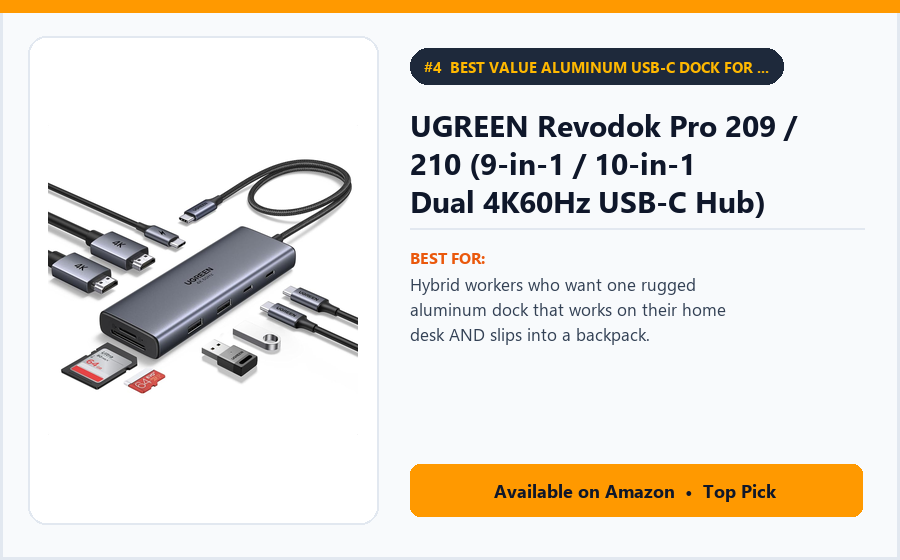
Best for: Hybrid workers who want one rugged aluminum dock that works on their home desk AND slips into a backpack.
Many budget USB-C hubs advertise ‘4K HDMI,’ only for you to plug in your 4K monitor and realize the mouse cursor looks laggy and choppy because the hub is capped at 30Hz!
The UGREEN Revodok Pro series (209 / 210 / 2109) upgrades to high-bandwidth DisplayPort 1.4 Alt Mode—supporting a true, silky-smooth 4K at 60Hz (and dual 4K@60Hz on DP 1.4 DSC Windows laptops) for around $49 to $69.
Key Features
Encased in a ribbed space-gray aluminum heat-sink shell, it packs two HDMI ports (or HDMI + DisplayPort), a 100W PD charging input (delivering 85W to your laptop), Gigabit Ethernet, two 10Gbps USB 3.2 ports, and SD/TF card readers.
On the Revodok Pro 209 (DisplayLink version), UGREEN even includes DisplayLink graphics support for M1/M2/M3 Mac dual-monitor extending!
Weighing just a few ounces, it transitions from your desk to a hotel conference room effortlessly.
Why It’s Worth Considering
Having true 4K at 60Hz instead of 4K at 30Hz makes a night-and-day difference in eye comfort when moving windows and spreadsheets across a 27- or 32-inch 4K monitor.
✓ Pros
- Supports smooth 4K@60Hz refresh rates (unlike choppy 4K@30Hz budget hubs).
- Fast 10Gbps USB-C and USB-A data ports for external SSDs.
- Includes Gigabit Ethernet and 100W Power Delivery pass-through.
- Ribbed aluminum housing dissipates heat cleanly.
- Compact enough to pack in a laptop bag for hybrid workdays under $70.
✗ Cons
- Requires your own USB-C PD wall charger (reserves 15W for dock electronics, passing up to 85W to laptop).
- Short attached host cable (on bar models) sits close to the laptop.
- Gets warm to the touch when driving dual 4K60 displays + 85W charging (normal for aluminum hubs).
- Check variant carefully: Revodok Pro 210 is MST (Windows dual monitor), Revodok Pro 209 is DisplayLink (Mac + Windows dual monitor).
Our Verdict
The UGREEN Revodok Pro series is the best sub-$70 aluminum dock for smooth 4K@60Hz monitors and 10Gbps SSD transfers.
Pick the Revodok Pro 210 for Windows laptops, or the Revodok Pro 209 if you use a base M1/M2/M3 MacBook with two screens.
5. CalDigit SOHO Dock (USB-C Gen 2 10Gb/s Hub with Dual DisplayPort & HDMI) – Best Pro-Grade 10Gb/s Creator & Single-4K60Hz Mac/PC Mini Dock Under $100

Best for: Photographers, MacBook Pro users, and single-4K60Hz monitor setups who want CalDigit’s legendary stability and UHS-II SD speeds.
CalDigit makes the world-famous $400 TS4 Thunderbolt 4 dock used in Hollywood editing bays. What many shoppers don’t know is that CalDigit also makes a sub-$100 compact sibling: the CalDigit SOHO (Small Office Home Office) Dock (~$79 to $99).
Unlike cheap 5Gb/s hubs that steal bandwidth from your USB ports when you plug in a 4K60Hz monitor, the SOHO Dock uses a full 10Gb/s USB-C Gen 2 controller.
Key Features
That double bandwidth lets it drive a true uncompressed 4K@60Hz HDR monitor (via either HDMI 2.0b OR DisplayPort 1.4) while still maintaining fast 10Gb/s USB-C and USB-A speeds for external NVMe SSDs!
Photographers and videographers love its front card readers: they are true UHS-II SD 4.0 and microSD slots (up to 312 MB/s—3x faster than standard UHS-I dock card slots!).
Crucially, the host USB-C cable that connects to your laptop is detachable, so you can swap in a longer 1-meter Thunderbolt/USB4 cable to hide the dock behind your monitor.
Why It’s Worth Considering
Note that the CalDigit SOHO omits an Ethernet port in favor of pro video and UHS-II card readers, and supports 1 extended 4K60 monitor on Mac (or dual 1080p60 on Windows).
✓ Pros
- Built by CalDigit—the gold standard in Mac and PC dock engineering.
- True 10Gb/s USB-C Gen 2 bandwidth supports 4K60Hz HDR + 10Gb/s SSDs simultaneously.
- Blazing-fast UHS-II SD 4.0 and MicroSD card slots for photographers.
- Detachable host USB-C cable (can be replaced with a longer cable!).
- Hefty extruded aluminum heat-sink body.
✗ Cons
- Does not include a wired Ethernet port.
- Uses your laptop’s USB-C wall charger for up to 100W pass-through (AC brick not included).
- Best for a single 4K60Hz monitor (or dual 1080p60 on Windows).
- Only one USB-A port and one data USB-C port on the front.
Our Verdict
The CalDigit SOHO Dock is the #1 choice under $100 if you run a single 4K60Hz monitor, edit photos/video from UHS-II SD cards, and want a detachable host cable from a premier dock maker.
Plug your laptop’s USB-C charger into the back of the SOHO for seamless one-cable docking.
6. Dell WD19S / TobenONE Dual-Monitor USB-C Docking Station (with Power Supply) – Best Corporate Office Dock for Dell, HP & Lenovo Laptops Under $150
Best for: Corporate remote workers with a Dell Latitude/XPS, HP EliteBook, or Lenovo ThinkPad wanting a tank-built office dock.
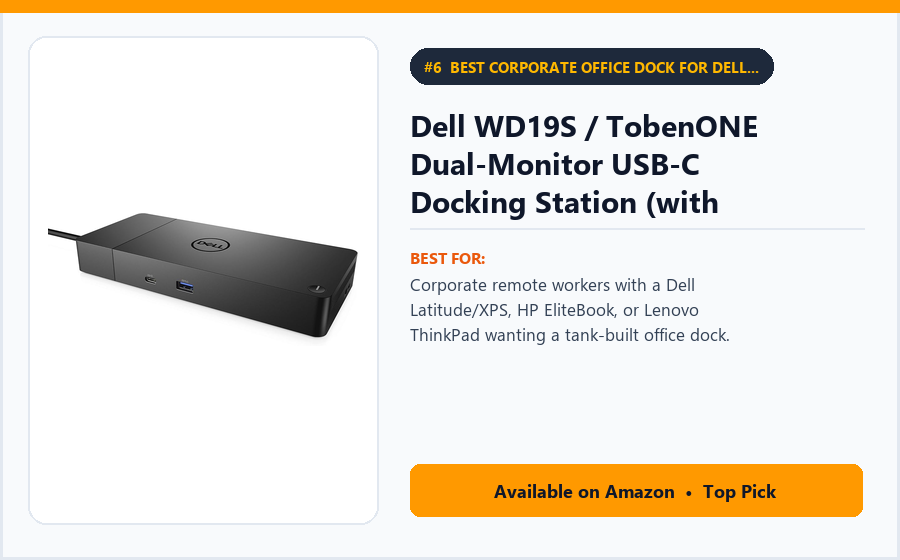
If your employer issued you a Windows corporate laptop (Dell Latitude, XPS, Precision, Lenovo ThinkPad, or HP EliteBook) and you want the exact same rock-solid horizontal dock used at your company’s headquarters, the Dell WD19S (130W/180W) and TobenONE 12-in-1 Powered Desktop Dock are regularly available on Amazon under $150.
Both include a heavy-duty external power brick in the box—so you never touch your travel charger.
Key Features
The Dell WD19S features two full-size DisplayPort 1.4 ports, one HDMI 2.0b port, a multifunction USB-C DisplayPort, Gigabit Ethernet, three USB-A ports, and two USB-C ports—even including a Power Button on the dock that wakes up compatible Dell laptops with the lid closed!
The TobenONE Powered Dock lies flat as an angled laptop riser stand (or horizontal hub) with dual HDMI + VGA, Ethernet, SD readers, and an included 100W power supply for ~$89–$119.
Designed to stay plugged in 24/7 for years of corporate workdays.
Why It’s Worth Considering
Having a physical power button on the Dell WD19S means Dell laptop owners can leave their laptop closed in a vertical stand and turn their computer on in the morning just by pressing the button on the dock!
✓ Pros
- Includes a heavy-duty dedicated AC power supply right in the box.
- Dell WD19S includes a physical power/wake button for Dell laptops.
- Drives dual 4K or triple 1080p monitors effortlessly on Windows laptops.
- Built like a corporate tank with an attached reinforced USB-C host cable.
- Full Gigabit Ethernet and abundant rear + front USB ports.
✗ Cons
- Uses MST for multi-monitor video (great for Windows; macOS mirrors dual screens).
- Dell WD19S omits SD card slots and 3.5mm audio (TobenONE includes both).
- Large external power brick.
- Strictly a stationary desk dock (not for travel bags).
Our Verdict
The Dell WD19S (especially for Dell laptops) or TobenONE Powered Desktop Dock is the best sub-$150 choice for corporate Windows remote workers who want a plug-and-forget office workhorse.
Update your laptop’s BIOS and graphics drivers once so DisplayPort MST wakes both monitors instantly from sleep.
7. Anker 364 (10-in-1 Dual 4K HDMI) / Anker 555 USB-C Hub – Best USB-C Hub for Elevated Laptop Stands Under $65
Best for: Anyone who places their laptop on an elevated desk stand (where short 6-inch dongle tails hang awkwardly in midair!).
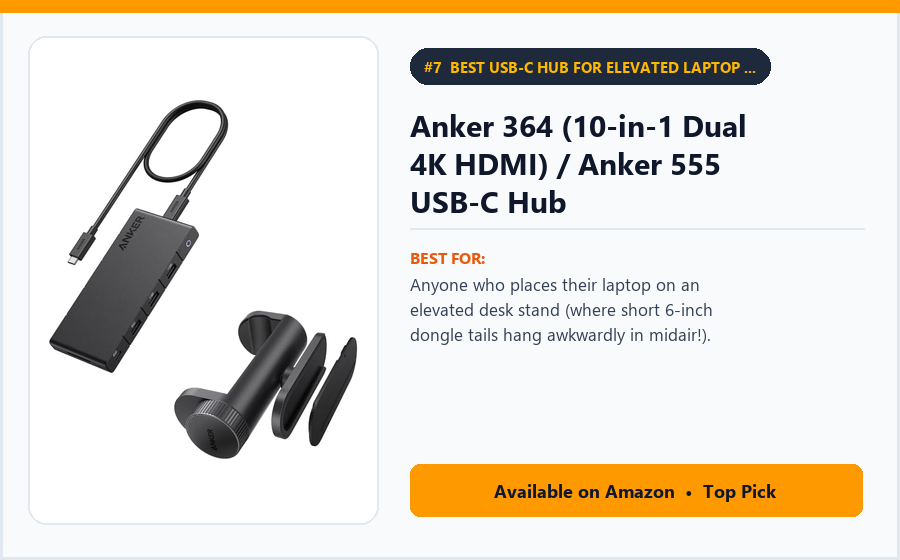
Here is a problem nobody realizes until they put their laptop on an elevated ergonomic stand: standard USB-C hubs have a stubby 5-inch cable—so the hub dangles upside down in midair, pulling downward and wearing out your laptop’s USB-C port!
The Anker 364 USB-C Hub (10-in-1 Dual 4K HDMI) fixes that ergonomics flaw with a generous 1.6-foot (50cm) flexible host cable so the hub rests completely flat on your desk mat even when your laptop is raised 8 inches high on a stand!
Key Features
Priced around $55 to $69, it packs two HDMI ports (up to 4K60Hz single or dual 4K30Hz/1080p60Hz on Windows), Gigabit Ethernet, a 100W PD charging input, a 5Gbps USB-C data port, three USB-A ports, and both SD and MicroSD slots.
Its matte-black low-profile bar tucks neatly underneath your laptop stand or monitor riser.
Backed by Anker’s 18-month warranty.
Why It’s Worth Considering
Eliminating the downward strain of a dangling dongle on your laptop’s solder joints is worth the price alone for laptop-stand users.
✓ Pros
- Long 1.6-foot host cable lets the hub sit flat on the desk when using a tall laptop stand.
- Includes two HDMI ports, Gigabit Ethernet, and SD/MicroSD card slots.
- Supports up to 100W PD pass-through charging (85W to laptop).
- Four total USB data ports (1 USB-C + 3 USB-A) for mouse, keyboard, and webcam.
- Affordable price under $65.
✗ Cons
- Requires plugging your own USB-C wall charger into the PD input port.
- Dual HDMI uses MST (extended dual monitors on Windows; mirrored on macOS).
- Data ports are 5Gbps (plenty for webcams/drives, slightly slower than 10Gbps hubs).
- No 3.5mm audio jack.
Our Verdict
The Anker 364 (10-in-1) is the #1 USB-C hub under $65 if you keep your laptop on an elevated desk stand and hate dangling dongles.
Tuck the hub right underneath your laptop stand legs and route the 1.6-foot cord up to your laptop.
How to Choose the Best USB-C Docking Stations Under $150 in 2026
Buying the wrong USB-C dock is one of the most common tech returns on Amazon—usually because of hidden Mac vs. Windows multi-monitor rules or refresh-rate caps.
Check these five compatibility rules before ordering your dock in 2026.
1. CRITICAL FOR MAC USERS: MST vs. DisplayLink for Dual Monitors!
Windows Laptops: Support DisplayPort MST (Multi-Stream Transport)—meaning almost any dual-HDMI USB-C dock (Anker 575, Anker 364, Baseus, UGREEN, Dell) will display two or three independent extended desktops on Windows.
MacBooks (macOS): Apple’s macOS does NOT support MST over regular USB-C! If you plug two monitors into a standard MST hub on a Mac, both external monitors will show the exact same mirrored image!
The Mac Dual-Monitor Fix: If you have a base M1, M2, or M3 MacBook and want two different extended monitors under $150, you MUST buy a DisplayLink-enabled dock (like the Plugable DisplayLink Dock #2, Anker 563 DisplayLink, or UGREEN Revodok Pro 209 DisplayLink).
2. Powered Desktop Dock (Brick Included) vs. Pass-Through Hub
Powered Desktop Docks (Anker 575, Dell WD19S, TobenONE): Include their own 100W–180W AC power supply in the box. Your laptop’s charger stays in your backpack forever!
Pass-Through Hubs (Baseus Spacemate, UGREEN Revodok, CalDigit SOHO, Anker 364): Cost $50–$90 and get power when you plug your laptop’s USB-C wall brick (or a $25 100W GaN charger) into the hub’s ‘PD IN’ port. Note that the hub keeps 15W for itself—so a 100W wall brick sends 85W to your laptop.
3. Insist on 4K at 60Hz (Avoid Choppy 4K at 30Hz!)
On a 4K monitor running at 30Hz, your mouse cursor stutters and lags across the screen like an old slideshow.
Make sure your dock supports DisplayPort 1.4 / HDMI 2.0 for true 4K@60Hz (all seven docks in this guide support 60Hz!).
4. Never Plug Your Monitor Into a ‘Data-Only’ USB-C Port on the Front of the Dock
Most docks have a USB-C port on the front labeled ’10Gbps Data’ or ’18W PD.’ That front port is for thumb drives and phone charging—it does not output video! Always plug monitors into the rear HDMI, DisplayPort, or video-labeled ports.
5. Verify Your Laptop’s USB-C Port Supports Video + Charging
All modern MacBooks (2016–2026) and Thunderbolt/USB4 Windows laptops support full docking (Video + Power + Data) over USB-C. If you have a budget Windows laptop, check that the symbol next to your USB-C port is a Lightning Bolt (Thunderbolt), a ‘D’ (DisplayPort), or a Battery+Display icon.
Powered Desktop Dock vs. DisplayLink Mac/PC Dock vs. Pass-Through Hybrid Hub: Which Is Better?
Compare the three USB-C docking station architectures side by side.
| Feature | Powered Desktop Dock (MST) | DisplayLink Dual-Monitor Dock | Pass-Through Hybrid Hub |
|---|---|---|---|
| Representative models | Anker 575 (13-in-1), Dell WD19S | Plugable DisplayLink, Anker 563, UGREEN 209 | Baseus Spacemate, UGREEN 210, CalDigit SOHO, Anker 364 |
| AC power supply included? | Yes (130W–180W brick in the box) | Yes on desktop models (Pass-through on portable) | No (plug in a 65W–100W USB-C wall charger) |
| Windows Dual Extended Monitors? | Yes (native plug-and-play MST) | Yes (via DisplayLink) | Yes (native plug-and-play MST) |
| Base M1/M2/M3 Mac Dual Monitors? | No (supports 1 extended screen on Mac) | YES! (drives 2 independent screens on any Mac) | No (supports 1 extended screen on Mac) |
| Travel portability | Low (stays on home/office desk) | Low to Moderate | High (slips into a backpack) |
| Best for | Permanent Windows desks & 1-monitor Macs | MacBook Air/Pro users needing 2 external monitors | Budget desks, laptop stands & hybrid travel |
Which One Should You Buy First?
If you use a Windows laptop (or a Mac with one ultrawide monitor) and want a complete vertical dock that includes its own 135W power supply in the box, buy the Anker 575 (13-in-1) or Dell WD19S.
If you use a MacBook (especially a base M1, M2, or M3 Air/Pro) and want to run two independent extended external monitors, buy the Plugable DisplayLink Dual-Monitor Dock (or UGREEN Revodok Pro 209 DisplayLink).
If you want a sleek vertical hub with a screen-lock button (or a long cord for a laptop stand) under $85, choose the Baseus Spacemate 11-in-1, UGREEN Revodok Pro 210, CalDigit SOHO, or Anker 364.
Do You Need a $300 Thunderbolt 4 Dock, or Is a Sub-$150 USB-C Dock Enough?
Walk onto tech forums and people will tell you to buy a $300 to $400 Thunderbolt 4 dock. Who actually needs a $350 Thunderbolt 4 dock? Only users running dual 4K@144Hz gaming monitors simultaneously alongside 40Gbps RAID arrays on a MacBook Pro Max/Pro chip.
For 95% of remote workers, coders, students, and business professionals running one 4K60Hz monitor or two 1080p/1440p60Hz office monitors, Gigabit Ethernet, a webcam, and a keyboard, a $65 to $139 USB-C dock works identically—waking your screens and charging your laptop over a single cord while saving you $200.
And ironically, on a base M1/M2/M3 MacBook Air, a $350 Thunderbolt 4 dock STILL only drives one monitor—whereas a $130 DisplayLink dock drives two!
Instead of focusing entirely on the initial purchase price, ask three questions:
- Am I plugging in a Windows laptop or a MacBook (and how many external monitors do I have)?
- Do I want a dedicated AC power brick included in the box so my laptop charger stays in my bag?
- Is my laptop sitting flat on the desk or elevated high on a laptop stand (needs a longer host cable)?
If you can answer these questions clearly, you’re more likely to make a purchase you’ll appreciate over the long term.
Frequently Asked Questions About USB-C Docking Stations Under $150
What is the best USB-C docking station under $150 in 2026?
The Anker 575 USB-C Docking Station (13-in-1) is our #1 overall pick under $150 because it includes its own 135W power supply (delivering 85W to your laptop + 18W to your phone) alongside 13 ports—while the Plugable DisplayLink Dock is our #1 pick for dual-monitor MacBook users.
Why are both of my external monitors showing the exact same mirrored screen on my MacBook?
Because macOS does not support DisplayPort MST (Multi-Stream Transport) over standard USB-C hubs! On a Mac, a standard non-DisplayLink dual-HDMI hub can only extend to one external display (and mirrors the second). To get two independent extended monitors on a base M1/M2/M3 Mac under $150, use a DisplayLink dock (like our #2 Plugable pick).
Can I use my laptop with the lid closed (‘Clamshell Mode’) when plugged into a USB-C dock?
Yes! On both Windows and macOS, as long as your dock is supplying Power Delivery charging to the laptop AND you have an external keyboard, mouse, and monitor connected, you can close your laptop lid and work exclusively on your big monitors.
Why does my 100W USB-C hub only charge my laptop at 85W?
Pass-through USB-C hubs reserve 15 watts of power from your wall charger to run the hub’s internal Ethernet chip, HDMI converter, and USB ports—passing the remaining 85 watts cleanly to your laptop.
Why did one of my monitors go black or drop resolution when I plugged in a second monitor?
A single 10Gbps USB-C port has a fixed video bandwidth pipe. Driving one monitor gets the full pipe (4K@60Hz); plugging in a second monitor splits that pipe in half across both screens (e.g., dual 1080p@60Hz or dual 1440p@60Hz).
Do USB-C docking stations work with both USB-C and Thunderbolt 3 / 4 laptop ports?
Yes! Every Thunderbolt 3, Thunderbolt 4, and USB4 port on modern Macs and Windows PCs is 100% backward-compatible with all USB-C docking stations.
Why does my wireless mouse stutter or lag when plugged into the back of my USB-C dock?
High-speed USB 3.0 (5Gbps/10Gbps) ports and HDMI cables emit mild 2.4GHz radio interference right around the dock casing. Always plug 2.4GHz wireless mouse/keyboard dongles into the dedicated USB 2.0 port on the dock (or use a $4 6-inch USB extension cord to move the receiver away from the metal dock).
Is it normal for an aluminum USB-C hub to feel warm to the touch?
Yes. Aluminum USB-C hubs use their outer metal shell as a passive heat sink to draw heat away from the internal video and power-delivery chips. Feeling warm (around 105°F–118°F) when driving monitors and charging a laptop is normal operation.
Final Verdict: Which Product Should You Buy in 2026?
Turning five tangled laptop cables into a single plug-and-play USB-C connection is the ultimate quality-of-life upgrade for any desk.
For overall 13-port completeness with a 135W power supply included in the box, the Anker 575 USB-C Docking Station is our #1 choice.
For running two independent extended monitors on a base M1, M2, or M3 MacBook, buy the Plugable DisplayLink Dual-Monitor Dock (or UGREEN Revodok Pro 209 DisplayLink).
For a sleek vertical desk tower with a top privacy screen-blackout button, choose the Baseus Spacemate 11-in-1.
Meanwhile, the UGREEN Revodok Pro 210 wins for portable dual-4K60Hz value under $70, the CalDigit SOHO leads for photographers needing UHS-II SD slots and a detachable host cable, the Dell WD19S / TobenONE rules corporate Windows desks, and the Anker 364 solves elevated laptop-stand cord reach.
Our final advice: Plug your wireless mouse receiver into the dock’s USB 2.0 port (away from the HDMI cables), use high-speed HDMI 2.0/DP 1.4 cables, and enjoy docking your entire workstation with a single click.
Once your desk runs on one clean USB-C cable, switching between work at home and work on the road takes two seconds flat.
Explore the Best USB-C Docking Stations Under \$150 on Amazon →
Disclaimer: Product specifications, availability, and features may vary by model, configuration, and region. Confirm all details with the manufacturer and retailer before purchasing.