
Even on a $1,500 laptop, the built-in webcam squeezed into a 3mm screen bezel is usually a tiny sensor that turns grainy in dim home offices—and worse, when you dock your laptop with the lid closed to an external monitor, you lose your camera and microphone completely.
Fortunately, you don’t need a $200 DSLR capture setup to look sharp, well-lit, and professional on Zoom, Microsoft Teams, Google Meet, or Twitch. The best webcams under $100 in 2026 offer large low-light sensors, 2K QHD or 1080p60 HDR video, adjustable fields of view, and physical privacy shutters.
Do you want a compact 2K workhorse for $48, a USB-C webcam that tilts down to show sketches on your desk, a smooth 60fps streaming camera from Elgato, or a webcam with a built-in ring light?
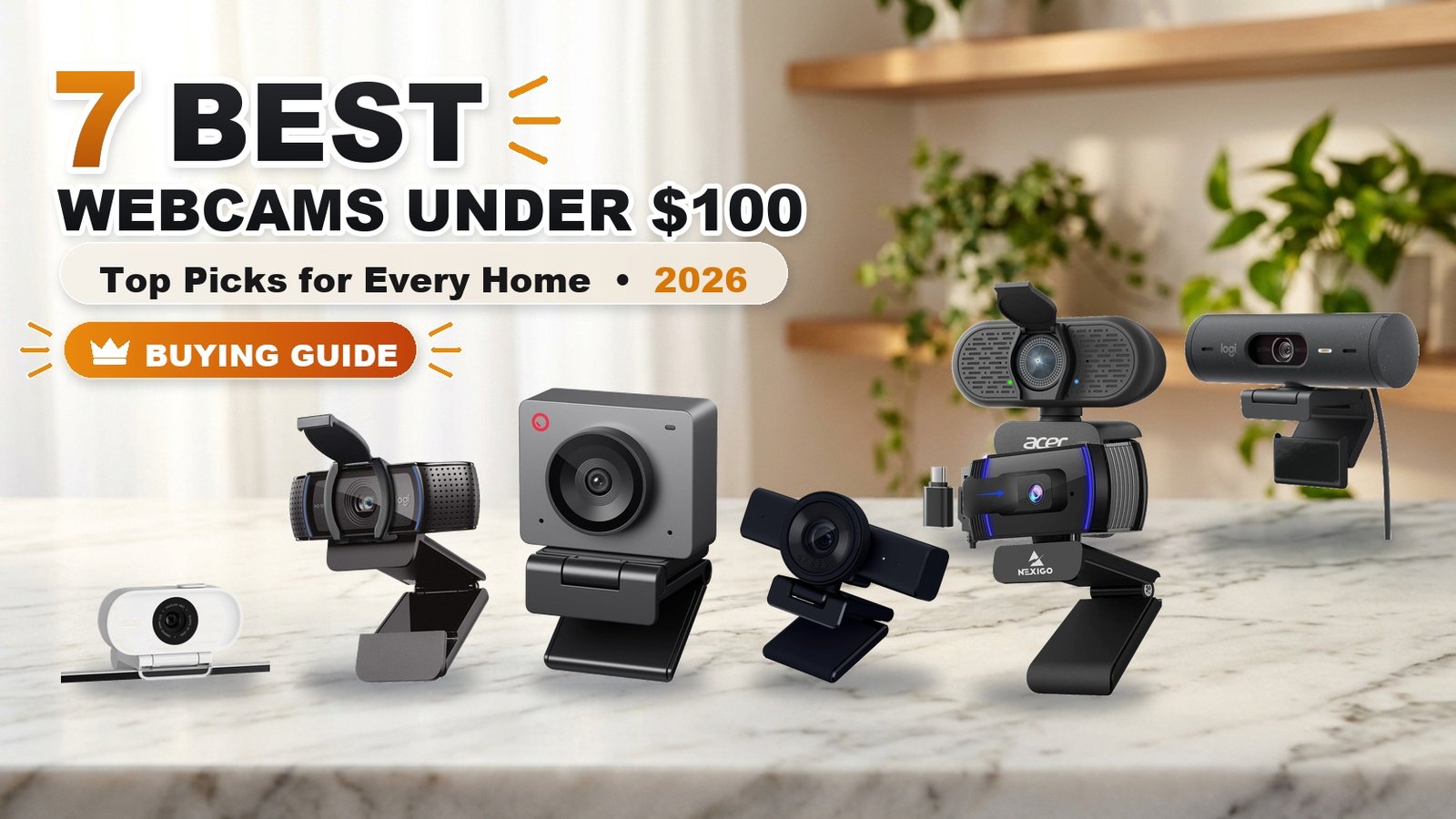
To help you look and sound your best on every video call, we’ve compared seven top-rated webcams under $100 on Amazon.
Quick Comparison: Best Webcams Under $100 of 2026
| Product | Best For | Key Feature |
|---|---|---|
| Anker PowerConf C200 2K | Best Overall Value (2K QHD) | 2K QHD resolution, f/2.0 large-aperture low-light lens, built-in physical privacy slider, and 65°/78°/95° FOV |
| Logitech Brio 500 | Best All-Around Work & Desk Show Mode | RightLight 4 auto-HDR for backlit windows, rotating privacy dial, Show Mode desk tilt, and magnetic mount |
| Elgato Facecam Neo (60fps) | Best 60fps for Streaming & Creators | True uncompressed-style 1080p at 60fps, Sony Starvis CMOS sensor, HDR, zero-lag fixed focus, and Camera Hub software |
| Logitech C920s Pro HD | Best Proven Classic Workhorse | Full HD 1080p glass lens, dual stereo mics, universal monitor/tripod clip, and snap-on privacy shutter |
| OBSBOT Meet SE / Meet 2 | Best Tiny AI Auto-Framing Camera | Matchbox-sized (1.1 oz!) camera with onboard AI Auto-Framing, gesture control, 1/2.8″ sensor, and magnetic mount |
| Razer Kiyo (Built-In Ring Light) | Best with Built-In Ring Light | 12-LED diffused ring light built around the lens with physical brightness bezel dial + 1080p30 / 720p60 |
| NexiGo N930AF Budget Pick | Best Budget Under $35 | 1080p autofocus glass lens, noise-canceling mic, flip-down privacy cover, and plug-and-play USB under $35 |
These are category-based editorial recommendations, not results from a single comparative laboratory test. Specifications are based on manufacturer information; we have not independently tested every product.
1. Anker PowerConf C200 2K USB-C Webcam – Best Overall 2K Webcam for Zoom & Remote Work Under $60
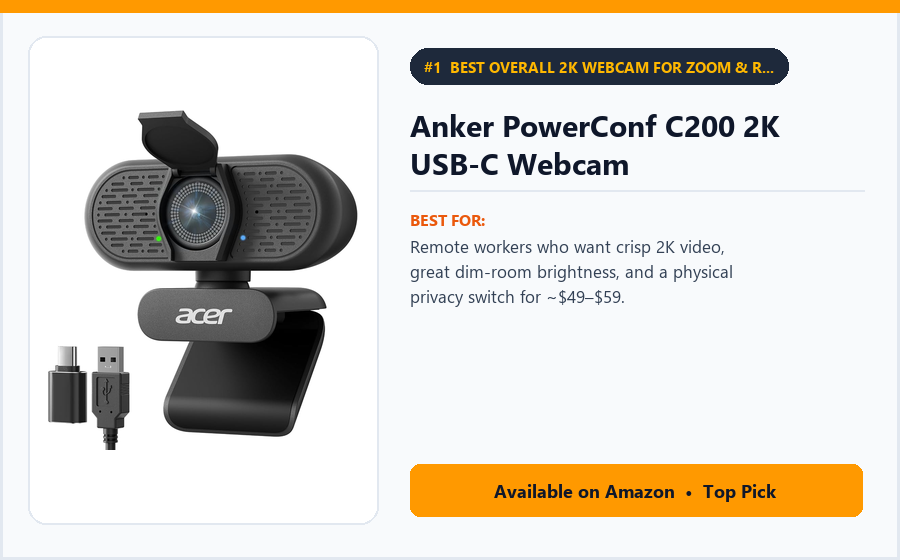
Best for: Remote workers who want crisp 2K video, great dim-room brightness, and a physical privacy switch for ~$49–$59.
At regularly around $47 to $59 on Amazon, the Anker PowerConf C200 has dethroned $100 legacy webcams to become the #1 recommendation for home offices.
Why? Because its large f/2.0 aperture lens captures significantly more light in dim bedrooms and offices than older f/2.8 webcams—keeping your face bright and grain-free even when you only have a desk lamp on.
Key Features
A physical slider switch built right into the top of the compact cube slides an opaque red shutter directly across the glass lens—physically turning the camera off when your meeting ends.
Using the free AnkerWork desktop software (on Mac or Windows), you can narrow the Field of View (FOV) down to 65 degrees so coworkers only see your head and shoulders—hiding your messy bed or kitchen behind you—or widen it to 78° or 95°!
It connects via a detachable USB-C cable (USB-A adapter included) and packs dual AI noise-canceling microphones.
Why It’s Worth Considering
Being able to crop the frame tightly to 65° in software means you don’t have to clean your entire room before a 9 a.m. call.
Fast autofocus locks onto your face in under a second and holds steady.
✓ Pros
- Sharp 2K (2560×1440) resolution for under $60.
- Large f/2.0 aperture performs impressively well in dim indoor lighting.
- Built-in physical privacy shutter switch powers the camera down when closed.
- Customizable 65°, 78°, or 95° field of view hides background room clutter.
- Detachable USB-C cable and standard 1/4″ tripod thread.
✗ Cons
- Caps at 30 frames per second (ideal for Zoom/Teams, though Twitch streamers may prefer 60fps on the Elgato Neo).
- Does not swivel 360 degrees left/right on its monitor mount (adjust angle by shifting the mount).
- Boxy cube shape sits slightly taller on thin monitor bezels.
- Built-in mic is clear for calls, though slightly compressed in echoey rooms.
Our Verdict
The Anker PowerConf C200 is our #1 overall webcam under $100—delivering 2K sharpness, superior low-light exposure, and a 65° tight crop for half the price of flagship rivals.
Download the AnkerWork app once to set your field of view to 65° or 78°, and the camera saves that setting in its onboard memory.
2. Logitech Brio 500 1080p HDR USB-C Webcam (with Show Mode) – Best USB-C Work Webcam for Backlit Rooms & Desk Demos Under $100
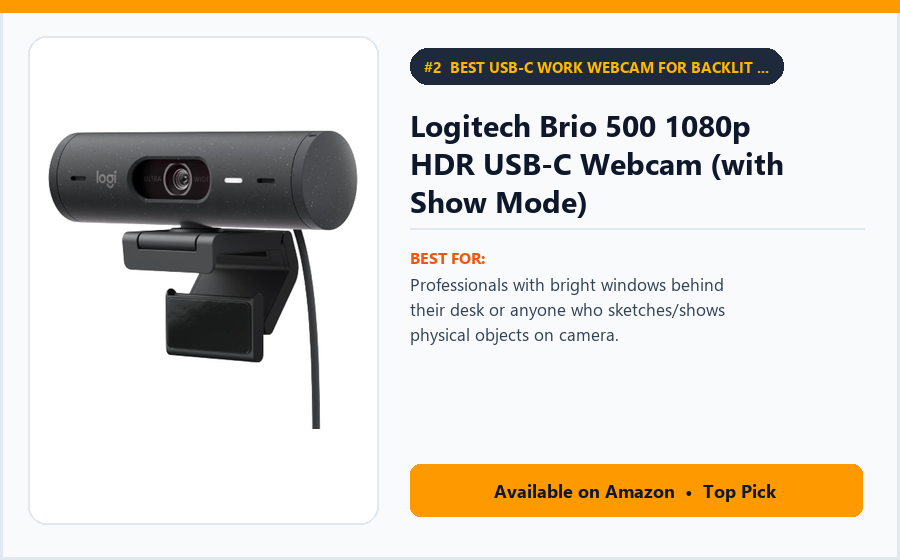
Best for: Professionals with bright windows behind their desk or anyone who sketches/shows physical objects on camera.
For over a decade, the Logitech C920 was the default office webcam—until modern USB-C laptops and bright window backlighting demanded a modern successor. The Logitech Brio 500 (regularly ~$99 on Amazon) is that true next-generation upgrade.
Its RightLight 4 with Auto-HDR solves the hardest lighting problem in home offices: when a bright sunny window behind you turns your face into a dark silhouette.
Key Features
Twist the textured dial on the right end of the cylinder, and a built-in mechanical privacy shutter spins closed over the lens.
Need to show a handwritten sketch, product prototype, or document on your desk during a call? Tilt the camera straight down 90 degrees with one hand, and Show Mode automatically flips the image 180 degrees so viewers read your desk right-side up!
A micro-suction magnetic monitor mount sticks securely to the thinnest bezelless monitors and lets the camera pan 360 degrees.
Why It’s Worth Considering
Dual beamforming microphones and Logi Tune software let you switch between 65°, 78°, and 90° fields of view.
Note that the attached 5-foot cable ends in a native USB-C plug (use a $3 USB-C-to-A adapter if plugging into an older desktop USB-A port).
✓ Pros
- RightLight 4 HDR handles harsh backlit windows much better than older webcams.
- Show Mode tilts down to your desk and auto-flips the video right-side up.
- Satisfying twist-ring mechanical privacy shutter.
- Micro-suction magnetic mount stays locked onto thin monitors and swivels 360°.
- Certified for Zoom, Microsoft Teams, and Google Meet.
✗ Cons
- 1080p30 / 720p60 resolution (rather than 2K or 4K).
- Attached USB-C cable is not removable from the camera body.
- Priced right at the top of the $100 budget (Brio 300 is ~$55 if you don’t need HDR/Show Mode).
- Show Mode auto-flip requires Logi Tune running in the background.
Our Verdict
The Logitech Brio 500 is the most polished corporate and WFH webcam under $100—especially if you sit in front of a bright window or demo items on your desk.
If you want Logitech reliability for under $60 and don’t need Show Mode, check out its cone-shaped sibling, the Logitech Brio 300.
3. Elgato Facecam Neo 1080p60 HDR USB-C Webcam – Best 1080p 60fps Webcam for Streaming, YouTube & Calls Under $100
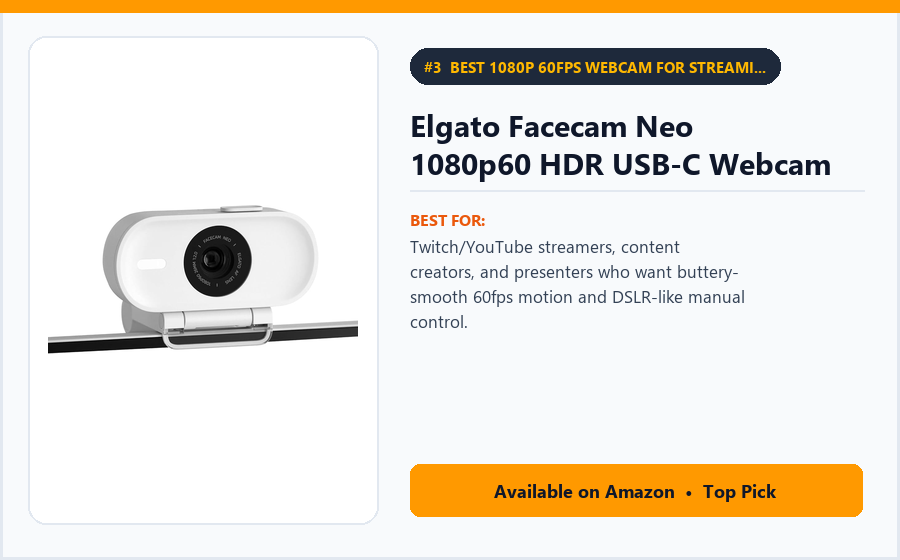
Best for: Twitch/YouTube streamers, content creators, and presenters who want buttery-smooth 60fps motion and DSLR-like manual control.
Most office webcams record at 30 frames per second and constantly ‘hunt’ with autofocus—blurring the entire screen every time you gesture with your hands or hold up a coffee mug.
Corsair’s streaming division engineered the Elgato Facecam Neo (~$89 to $99) around a Sony STARVIS CMOS sensor outputting silky-smooth 1080p at 60 frames per second with a deep-depth-of-field fixed lens that never hunts or blurs!
Key Features
From 12 inches out to infinity, your face stays locked in crisp focus even when you move around or talk with your hands.
Elgato’s Camera Hub software is the best in the business—giving you full manual control over shutter speed, ISO, white balance, HDR, and pan/tilt/zoom crops, then saving those settings directly onto the webcam’s internal flash memory!
A physical privacy switch on top slides a shutter over the f/2.0 lens.
Why It’s Worth Considering
IMPORTANT NOTE: Like professional studio cameras, the Elgato Facecam Neo does NOT have a built-in microphone (since streamers and podcasters use dedicated USB mics or headsets). If you need a built-in mic in the webcam itself, choose the Anker C200 or Logitech Brio 500 instead!
✓ Pros
- True 1080p at 60fps makes motion look twice as fluid as 30fps webcams.
- Fixed deep-focus lens never blurs or ‘hunts’ when you move your hands.
- Sony STARVIS sensor + HDR delivers natural skin tones.
- Onboard flash memory remembers your Camera Hub settings across any computer.
- Built-in physical privacy shutter and sleek white-and-black aesthetic.
✗ Cons
- No built-in microphone (requires using your headset, AirPods, or USB mic for audio).
- Attached braided USB-C cable is not detachable.
- Cannot autofocus on tiny text held 2 inches from the lens (optimized from 12″ to infinity).
- Requires USB-C port (or USB-C to A 3.0 adapter).
Our Verdict
The Elgato Facecam Neo is the undisputed #1 webcam under $100 for Twitch streamers, YouTubers, and anyone who already uses a headset/USB mic and wants fluid 60fps HDR video that never loses focus.
Turn on HDR inside the Elgato Camera Hub app if your room has high-contrast lighting.
4. Logitech C920s Pro HD / C920x 1080p Webcam – Best Time-Tested USB-A 1080p Office Webcam Under $70
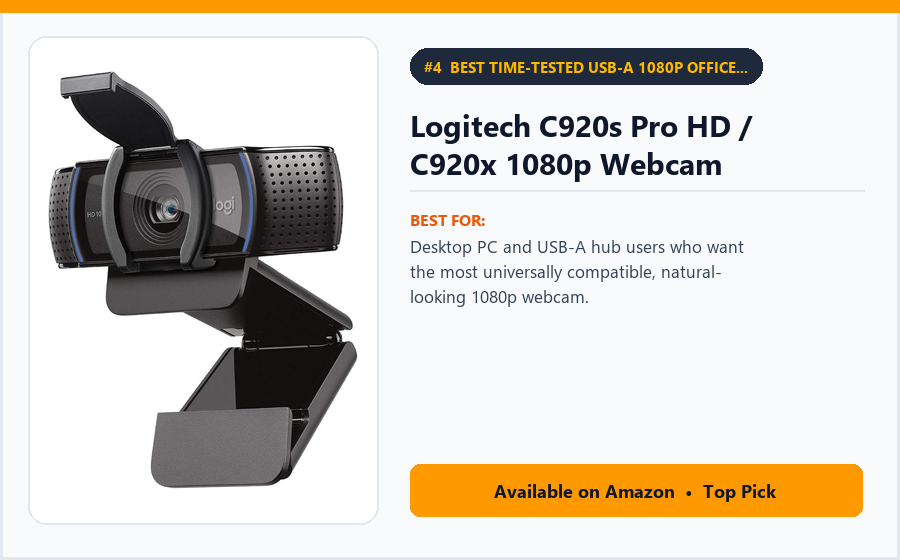
Best for: Desktop PC and USB-A hub users who want the most universally compatible, natural-looking 1080p webcam.
There is a reason the Logitech C920s Pro HD (~$59 to $69) has been on more monitors than any other webcam in history: its five-element glass lens and automatic white balance produce flattering, natural skin tones without the over-sharpened digital look of cheap 2K sensors.
Even in 2026, it remains the safest plug-and-play workhorse for Windows desktops, Linux machines, and USB-A docks.
Key Features
The C920s captures 1080p video at 30fps across a balanced 78-degree field of view that frames one or two people naturally.
A snap-on flip-down privacy cover shields the glass lens when not in use.
Its weighted, rubberized dual-hinge clip grips thick desktop monitors, thin laptop screens, or screws onto any standard 1/4-inch desk tripod.
Why It’s Worth Considering
Because it uses a classic rectangular USB-A plug, it plugs straight into desktop PC towers and monitors without needing a USB-C port.
Pair it with Logitech’s free Logi Tune app if you want to zoom in slightly or warm up the color temperature.
✓ Pros
- Flattering, natural color science and skin tones right out of the box.
- Universal plug-and-play compatibility across Windows, macOS, ChromeOS, and Linux.
- Sturdy, balanced monitor clip with a standard 1/4″ tripod thread.
- Includes a flip-down physical privacy cover (on C920s).
- Uses a standard USB-A cable for desktop PCs and hubs.
✗ Cons
- Requires a USB-C adapter if plugging directly into a MacBook with only USB-C ports.
- Fixed 78° field of view is wider than Anker’s 65° narrow crop unless zoomed digitally.
- f/2.8 lens needs decent room lighting compared with Anker’s f/2.0 lens.
- Attached 5-foot cable is not removable.
Our Verdict
The Logitech C920s Pro HD remains the gold-standard USB-A desktop webcam under $70 when you want natural skin tones and universal plug-and-play reliability.
If your laptop only has USB-C ports or a dim room, choose the Anker PowerConf C200 or Logitech Brio 500 instead.
5. OBSBOT Meet SE / Meet 2 (1080p100 / 4K Ultra-Tiny AI Framing Webcam) – Best Ultra-Compact AI Auto-Framing Webcam Under $100
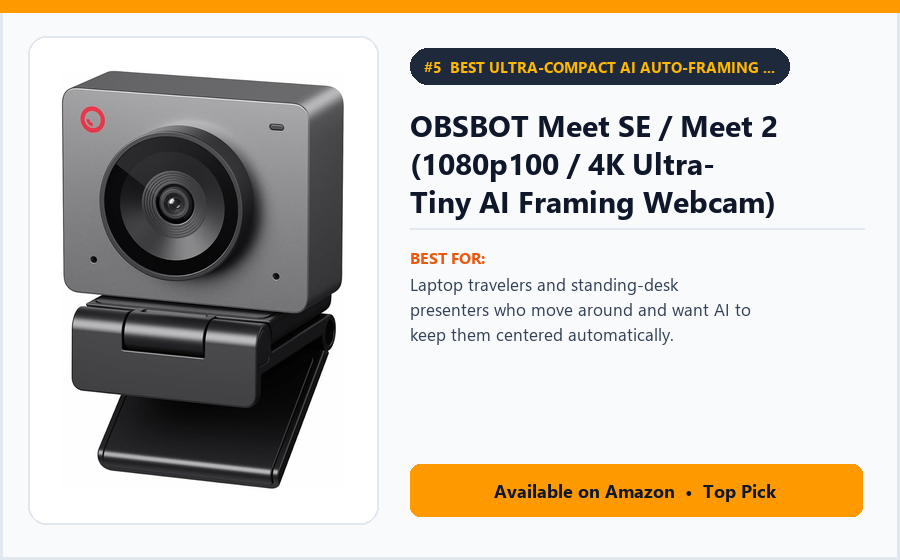
Best for: Laptop travelers and standing-desk presenters who move around and want AI to keep them centered automatically.
Traditional webcams are wide plastic bars that weigh down thin laptop screens. The OBSBOT Meet SE (~$69) and OBSBOT Meet 2 (~$99 in 4K) pack a large CMOS sensor and an onboard AI neural chip into a camera the size of a matchbox weighing just 1.17 ounces!
Even without running heavy software on your computer, the camera’s onboard AI automatically crops and pans digitally to keep your face centered in the frame as you shift in your chair or stand up at a standing desk.
Key Features
Hold your open palm up for one second, and AI Gesture Control toggles auto-framing on or off; hold up an ‘L’ finger gesture to zoom in 2x.
The magnetic mount lets you snap the camera horizontally (16:9 for Zoom) OR vertically (9:16 for TikTok/Reels/Shorts recording) in one second.
Includes a magnetic snap-on privacy cap, USB-C cable, and USB-A adapter.
Why It’s Worth Considering
Because it weighs practically nothing (33 grams), you can clip it onto a thin MacBook Air screen at a coffee shop without tipping the screen hinge backward.
✓ Pros
- Tiny 1.17-ounce matchbox size won’t weigh down thin laptop screens.
- Onboard AI Auto-Framing keeps you centered as you move or stand.
- Large sensor with phase-detection autofocus (PDAF) and bokeh mode.
- Mounts horizontally (16:9) or vertically (9:16) on its magnetic stand.
- Meet SE offers 1080p at up to 100fps for ~$69; Meet 2 offers 4K30 for ~$99.
✗ Cons
- Magnetic privacy cap is a separate piece (can be misplaced if not stuck to the stand).
- Gets warm to the touch during long 1-hour calls due to the tiny aluminum body.
- Hand gesture zoom can trigger accidentally if you hold one finger up while talking (can be disabled in software).
- AI panning is a smooth digital crop rather than motorized gimbal movement.
Our Verdict
The OBSBOT Meet SE (~$69) or 4K Meet 2 (~$99) is the best ultra-portable AI webcam under $100—especially for standing-desk users and laptop travelers.
Disable hand-gesture zoom in the OBSBOT Center app if you talk with your hands on calls.
6. Razer Kiyo / Kiyo X 1080p Webcam with Built-In Adjustable Ring Light – Best Webcam with a Built-In Adjustable Ring Light Under $65
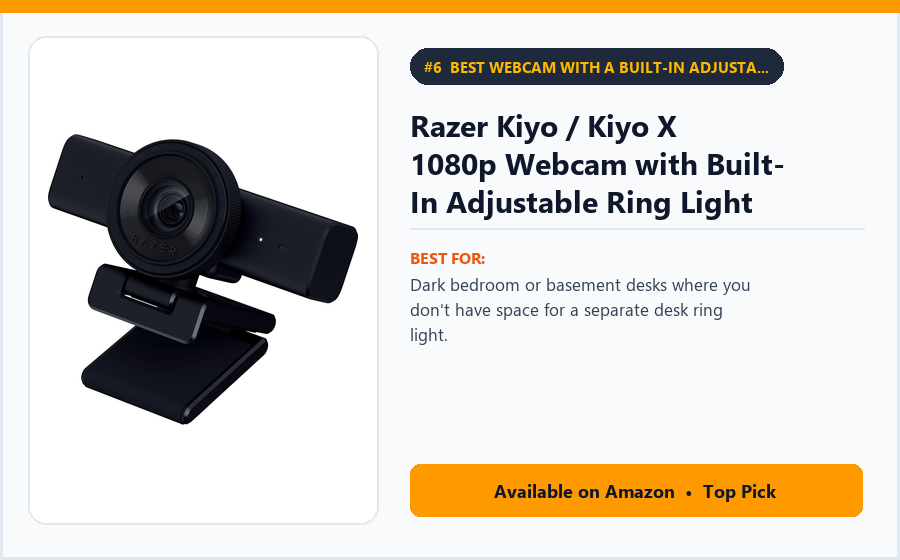
Best for: Dark bedroom or basement desks where you don’t have space for a separate desk ring light.
Lighting matters more for webcam quality than resolution: a 4K camera in a dark basement still looks muddy, while a 1080p camera with soft front fill light looks crisp and clear.
The Razer Kiyo (~$54 to $69) surrounds its 1080p30 / 720p60 lens with a built-in 5600K daylight LED ring light diffused behind a milky white bezel.
Key Features
To brighten or dim the light during a call, you don’t need software—you simply rotate the physical outer bezel ring clockwise or counterclockwise across 12 brightness steps!
Even on Step 2 or 3 out of 12, it fills in dark under-eye shadows in a dim bedroom without blinding you.
Folds flat into a compact circle for tossing into a backpack.
Why It’s Worth Considering
GLASSES WEARERS NOTE: If you wear prescription eyeglasses, a ring light mounted right around the camera lens will reflect two little white circles in your glasses—if you wear glasses, buy the Anker C200 (#1) and place a desk lamp 45 degrees off to the side instead!
✓ Pros
- Built-in diffused LED ring light illuminates your face in dark rooms.
- Physical rotating bezel dial adjusts brightness instantly on the fly.
- Eliminates buying and mounting a separate desk light.
- Supports both 1080p at 30fps and smooth 720p at 60fps.
- Folds into a compact round puck for travel under $65.
✗ Cons
- Ring light reflects white circles on eyeglasses if you wear glasses.
- Autofocus can occasionally pulse in low light (switch to fixed manual focus in Razer Synapse).
- Does not include a built-in privacy shutter.
- Built-in microphone is quiet—best paired with a headset.
Our Verdict
The Razer Kiyo is the best sub-$65 webcam for non-glasses wearers working in dark bedrooms or basements who want built-in fill lighting with a physical brightness dial.
Lock focus to Manual inside Razer Synapse (or Windows camera settings) so it stays rock-steady.
7. NexiGo N930AF / EMEET C960 2K / 1080p Autofocus Webcam – Best Budget 1080p Autofocus Webcam Under $35
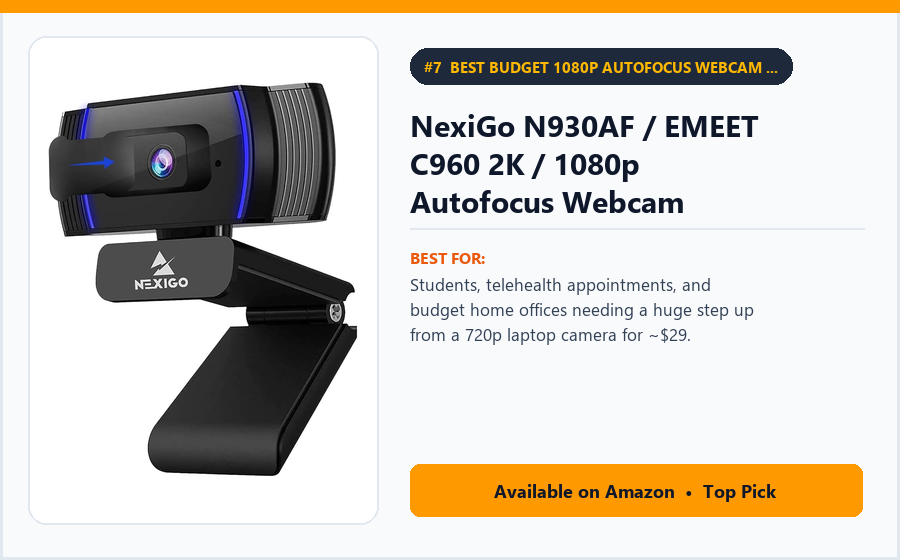
Best for: Students, telehealth appointments, and budget home offices needing a huge step up from a 720p laptop camera for ~$29.
If you only take a few Zoom calls or online classes a week and don’t want to spend $60 to $100, the NexiGo N930AF (~$29 to $35) (and 2K sibling N960E) is Amazon’s top-selling budget webcam.
For around thirty dollars, it upgrades you from a blurry 720p laptop pinhole to a real 1080p Full HD CMOS sensor with autofocus and a flip-down privacy cover.
Key Features
It works 100% driver-free right out of the box on Windows, Mac, Chromebook, and Zoom/Teams.
The mounting clip includes a 1/4-inch threaded nut on the bottom (and many NexiGo bundles even include a mini desktop tripod in the box).
A built-in noise-reducing microphone picks up speech clearly at desk distance.
Why It’s Worth Considering
Understand the $30 trade-offs: its dynamic range in harsh window backlighting and low-light grain control are a step behind the $50 Anker C200—so sit facing a window or desk lamp for the cleanest picture.
✓ Pros
- Outstanding budget value under $35 with real 1080p autofocus.
- Includes a physical flip-down privacy cover over the lens.
- Zero software required—instant USB plug-and-play on any PC or Mac.
- Noticeably sharper and better-angled than built-in laptop cameras.
- Standard tripod thread on the monitor clip.
✗ Cons
- Struggles more with bright window backlighting than HDR cameras like Brio 500 or Anker C200.
- Wide ~75–85° field of view requires third-party software to crop.
- Uses a fixed USB-A cord.
- Autofocus takes a second to settle if you hold small objects close.
Our Verdict
The NexiGo N930AF is the best sub-$35 budget webcam on Amazon for students, casual WFH calls, and desktop PCs that lack a camera.
If you can stretch your budget by $18, the Anker PowerConf C200 (#1) is well worth the jump for 2K resolution and dim-room clarity.
How to Choose the Best Webcams Under $100 in 2026
Before buying a webcam, remember that how you position and light the camera matters just as much as the sensor inside.
Follow these five rules to look like a pro on every video call in 2026.
1. Look for Adjustable Field of View (FOV): Why 65°–78° Beats 90°
Cheap webcams brag about ‘Ultra-Wide 90° or 110° Lenses!’ Unless you are filming six people around a conference table, a 90° lens is terrible for home offices—it shows your entire bedroom, closet door, and ceiling fan while making your face look tiny.
Choose a webcam that defaults to 78° or lets you crop down to 65° in software (like the Anker PowerConf C200, Logitech Brio 500, and Elgato Facecam Neo).
2. Prioritize Aperture (f/2.0) and HDR Over Raw ‘4K’ Pixels
Zoom, Microsoft Teams, and Google Meet compress live video calls to 720p or 1080p anyway to save internet bandwidth!
What actually makes you look sharp on a compressed Zoom call is a wide f/2.0 aperture lens (which prevents dark grain in indoor rooms) and Auto-HDR (which stops bright windows from blowing out your face).
3. Check Whether You Need 30fps (Meetings) or 60fps (Streaming)
For Zoom, Teams, Slack huddles, and Google Meet, 30 frames per second (Anker C200, Logitech Brio 500/C920s) is the universal standard.
For Twitch streaming, YouTube facecam overlays, or recording fast tutorials, choose 1080p at 60fps (Elgato Facecam Neo or OBSBOT Meet SE).
4. Insist on a Physical Privacy Shutter
A glowing status LED is nice, but sliding a physical opaque shutter across the lens gives you 100% visual confirmation from across the room that your camera cannot see you.
Nearly every pick on our list includes a built-in or snap-on physical privacy cover.
5. Put Light IN FRONT of Your Face (Never Sit With an Uncurtained Window Behind You!)
Even a $200 webcam looks rough if a bright sunlit window is directly behind your back.
Place a warm desk lamp behind your monitor facing you (or sit facing a window) for instant studio-grade skin tones.
2K Low-Light Office Webcam vs. 1080p60 Streaming Webcam vs. AI Auto-Framing Mini Webcam: Which Is Better?
Compare how the three top sub-$100 webcam styles match different workflows.
| Feature | 2K / HDR Office Webcam | 1080p60 Streaming Webcam | AI Auto-Framing Mini Webcam |
|---|---|---|---|
| Representative models | Anker PowerConf C200, Logitech Brio 500 | Elgato Facecam Neo | OBSBOT Meet SE / Meet 2 |
| Max resolution & frame rate | 2K at 30fps (Anker) / 1080p HDR (Brio) | 1080p at 60fps HDR | 1080p at 100fps (SE) / 4K30 (Meet 2) |
| Built-in microphone? | Yes (dual noise-canceling mics) | No (designed for headset/USB mic users) | Yes (built-in noise-reduction mic) |
| Focus mechanism | Fast Autofocus | Zero-hunt Deep Fixed Focus (12″ to infinity) | PDAF Autofocus + AI Face Tracking |
| Weight on laptop screen | Moderate (~3 to 4.5 oz) | Moderate (~4 oz) | Featherweight (1.17 oz) |
| Best for | Daily Zoom, Teams & dim home offices | Twitch, YouTube & hand-gesture presenters | Standing desks & laptop travel |
Which One Should You Buy First?
If you want the sharpest image, best low-light brightness, and a 65° background-hiding crop for under $60, buy the Anker PowerConf C200 2K.
If you sit in front of a bright window or need to tilt your camera down to show sketches on your desk, buy the Logitech Brio 500.
If you already wear a headset or use a USB mic and want buttery-smooth 60fps HDR video that never blurs when you move your hands, buy the Elgato Facecam Neo—or grab the 1.1-ounce OBSBOT Meet SE for AI auto-framing on a laptop.
Are $200+ 4K Webcams Worth Buying for Zoom and Microsoft Teams?
Many remote workers assume buying a $200 4K webcam will make them look twice as sharp on work calls. Then they join a Zoom or Microsoft Teams meeting and discover a technical reality: Zoom, Teams, and Meet automatically downscale your outgoing webcam feed to 720p or 1080p!
You only ever see raw 4K resolution if you are recording local 4K video files directly to your hard drive for YouTube editing.
For live video calls and streaming, a $50 Anker PowerConf C200, $90 Elgato Facecam Neo, or $95 Logitech Brio 500 gives you the exact same (or better!) low-light exposure and HDR balance on screen while keeping $100+ in your wallet.
Instead of focusing entirely on the initial purchase price, ask three questions:
- Do I need a built-in microphone in the webcam, or do I already use AirPods / a headset / USB mic?
- Does my computer have an open USB-C port or rectangular USB-A port?
- Is my room dim (needs f/2.0 Anker or Razer Kiyo) or backlit by a bright window (needs HDR Brio 500 / Elgato Neo)?
If you can answer these questions clearly, you’re more likely to make a purchase you’ll appreciate over the long term.
Frequently Asked Questions About Webcams Under $100
What is the best webcam under $100 in 2026?
The Anker PowerConf C200 2K is our #1 overall recommendation under $100 because its f/2.0 low-light lens, 2K sharpness, physical privacy switch, and 65° narrow crop beat competitors costing twice as much—while the Logitech Brio 500 and Elgato Facecam Neo lead at the ~$95 mark.
Why does my new 2K or 1080p webcam still look blurry on Zoom?
By default, Zoom and Microsoft Teams often uncheck HD video to save bandwidth! Open Zoom Settings → Video → check the box for ‘HD’ and ‘Touch up my appearance / Adjust for low light’ to unlock your webcam’s full sharpness.
Should I use my webcam’s built-in microphone or wireless earbuds for meetings?
While dual mics on the Anker C200 and Logitech Brio 500 work well in quiet rooms, wearing wireless earbuds or a headset places the mic inches from your mouth—eliminating room echo and keyboard typing clicks.
Where is the most flattering height to mount a webcam?
Never angle a webcam looking up at your chin from below a laptop keyboard! Mount your webcam at eye level (or 1 to 2 inches above eye level angled slightly down)—if your external monitor is very tall, place the webcam on a $12 mini desk tripod right in front of the screen.
Why does my webcam flicker under LED ceiling lights?
Flickering bands happen when your room’s electrical frequency (60Hz in North America, 50Hz in Europe/Asia) clashes with the camera’s shutter speed. Open your webcam companion software (AnkerWork, Logi Tune, or Elgato Camera Hub) and switch Anti-Flicker to 60Hz (for US) or 50Hz.
Does the Elgato Facecam Neo have a microphone?
No—by design, Elgato omits an internal microphone on the Facecam Neo to dedicate 100% of the budget and housing to the Sony STARVIS 1080p60 sensor for users who already speak into a headset, AirPods, or USB microphone.
Do I need to install software to use these webcams on a locked work laptop?
No! All seven webcams in this guide are UVC plug-and-play—they work immediately in Zoom/Teams with zero drivers. Better yet, cameras with onboard memory (Anker C200, Elgato Neo, OBSBOT) let you configure your FOV crop once on your personal laptop, and the camera remembers that crop when plugged into your locked corporate laptop!
Can I mount these webcams on a tripod instead of clipping them to my monitor?
Yes, every webcam in this guide includes a standard 1/4″-20 threaded tripod socket on the bottom of the clip (or magnetic mount).
Final Verdict: Which Product Should You Buy in 2026?
Upgrading from a grainy laptop pinhole to a dedicated sub-$100 webcam makes every morning standup and client presentation look crisp and effortless.
For overall 2K clarity, low-light brightness, and a 65° background-hiding crop under $60, the Anker PowerConf C200 is our #1 choice.
For harsh backlit windows and tilting down to show documents on your desk, choose the Logitech Brio 500.
For silky 1080p 60fps streaming and zero focus-hunting, pick the Elgato Facecam Neo (paired with your existing mic/headset).
Meanwhile, the OBSBOT Meet SE / Meet 2 wins for 1.1-oz AI auto-framing, the Logitech C920s Pro HD remains the classic USB-A desktop staple, the Razer Kiyo adds a built-in ring light for dark rooms, and the NexiGo N930AF covers sub-$35 budgets.
Our final advice: Check the ‘Enable HD’ box inside your Zoom video settings, narrow your field of view to 65° or 78° so you fill the frame naturally, and place a warm lamp behind your monitor.
You’ll immediately look like the most prepared person on every call—without spending a dime over $100.
Explore the Best Webcams Under \$100 on Amazon →
Disclaimer: Product specifications, availability, and features may vary by model, configuration, and region. Confirm all details with the manufacturer and retailer before purchasing.